Every shape in PowerPoint can be locked in ten different ways: movement, resizing, rotation, selection, text editing, and more. Each lock has its own flag. But the PowerPoint UI barely exposes any of this, so most people never realize that this level of control is possible.
I first ran into locks in my slides about ten years ago, when PowerPoint Designer was first introduced with PowerPoint 2016. Designer produces attractively arranged layouts, but many of the shapes it inserts cannot be moved. You cannot select them, reposition them, or resize them through the normal UI.
Over time, Microsoft did add a Lock/Unlock option to the context menu, giving users and template authors more visible control. But it is still an all-or-nothing toggle: remove every lock at once, or leave everything locked. There is no way to pick which locks to keep and which to remove.
I wanted that granular control. So I built an app. 🤓
How I ran into the locks
I use PowerPoint a lot. It is my favorite tool for telling stories, with emoji,
animations, SmartArt, and more.
To get inspiration, I use the Designer. The results are often good enough to keep almost as-is.
Almost.
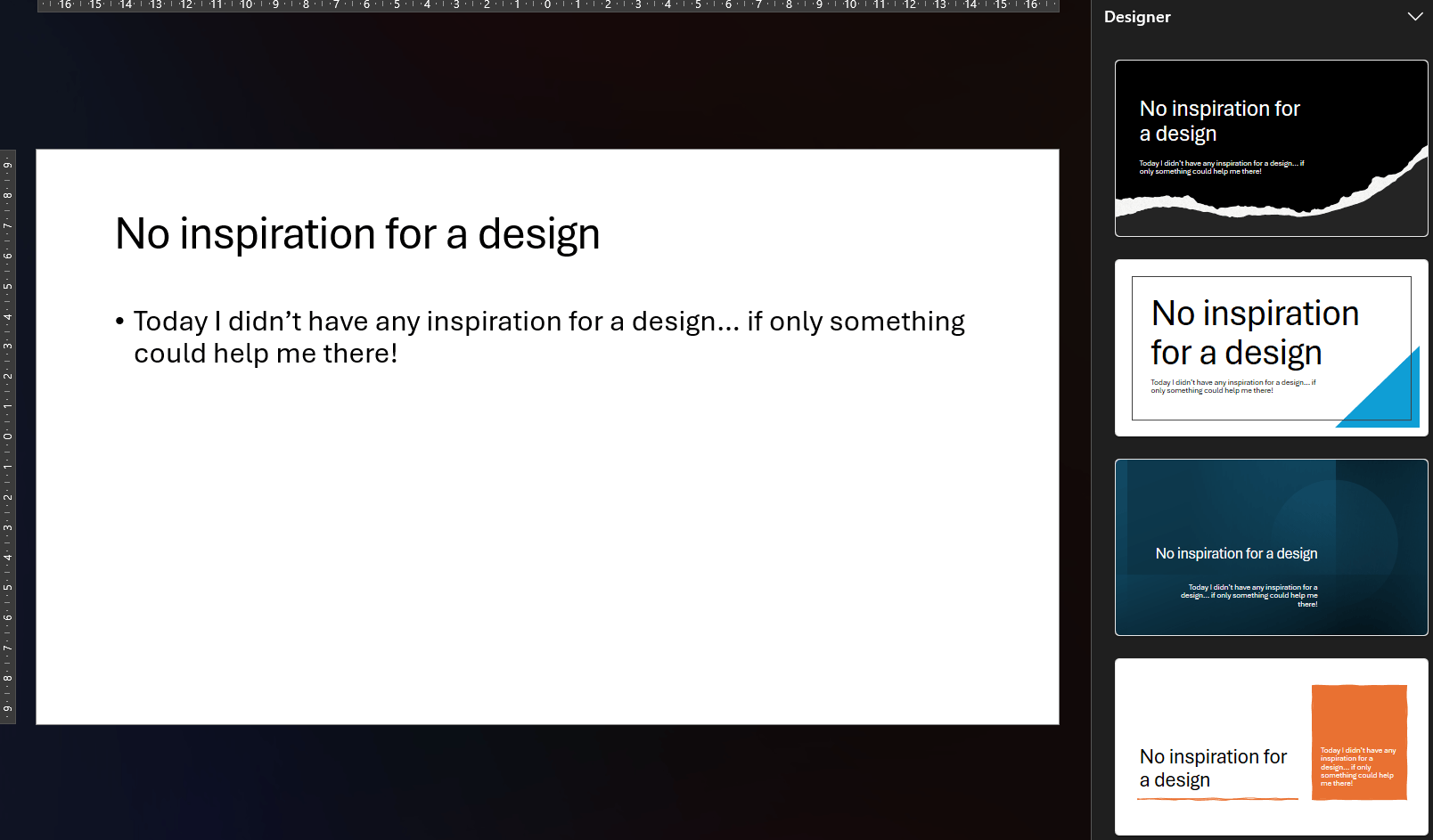
Sometimes the generated design fits the story but not quite the available space. I want to nudge a shape a few pixels to the left, or resize it to make room for an extra label. But nothing happens. The cursor does not change, the shape cannot be selected.
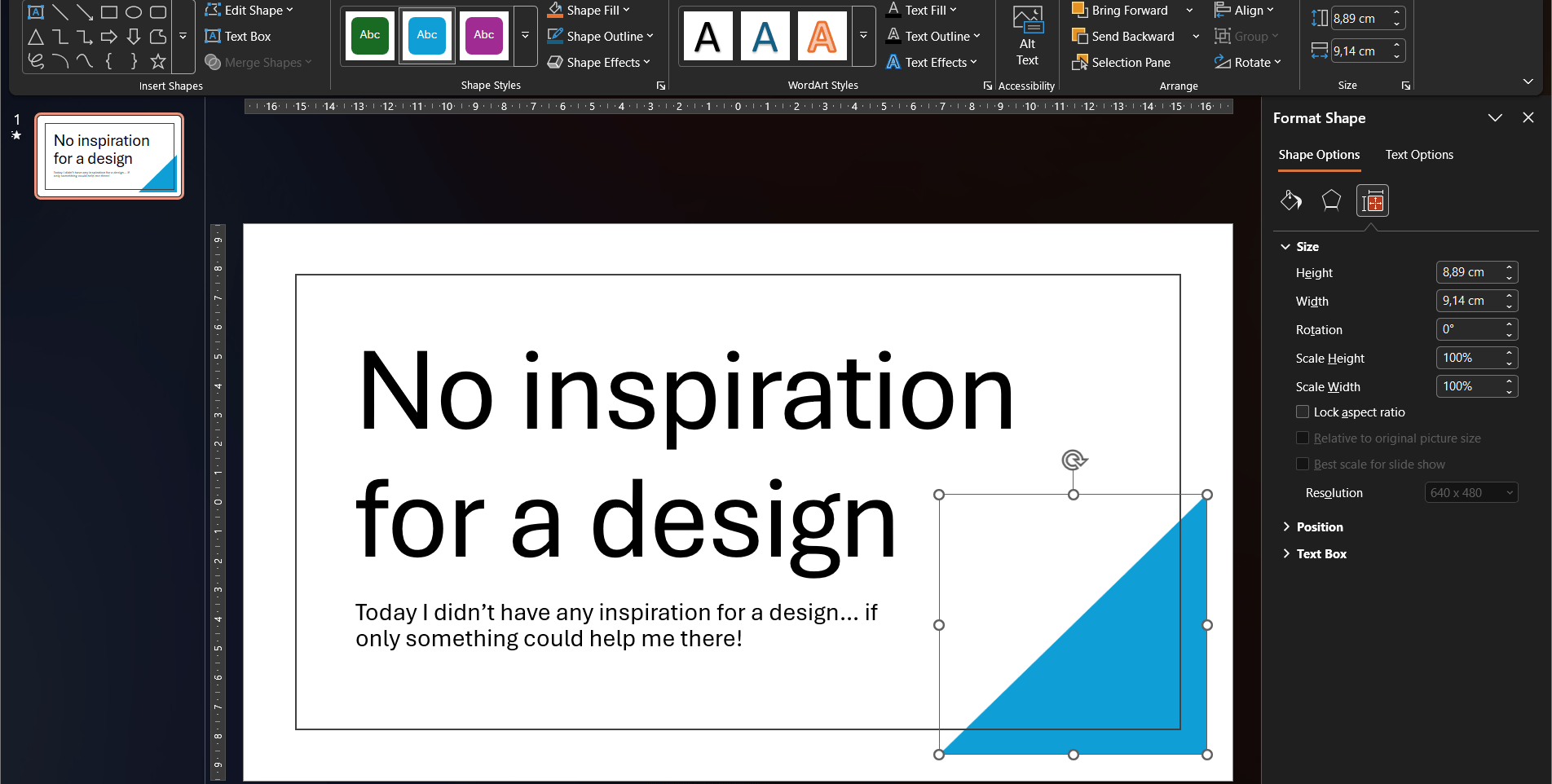
Take the blue triangle for example. I cannot move it or resize it. It is stuck.
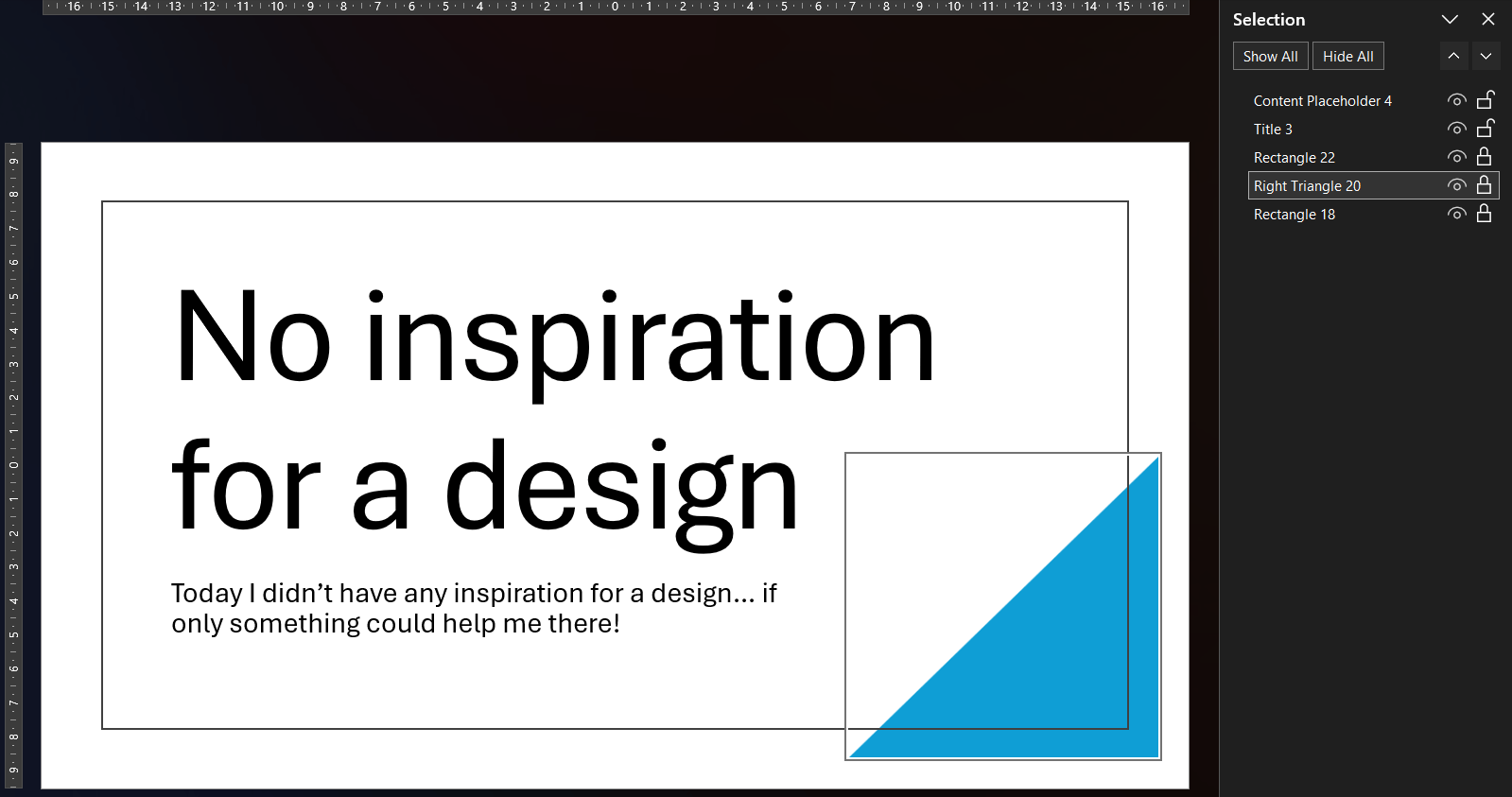
When you are able to select the shape, for example via the Selection pane, the ribbon only offers a handful of color options.

The Format Shape pane is no help either, because it is grayed out too.

The built-in unlock option
As mentioned, Microsoft eventually added a Lock/Unlock option to the context menu. You can reach it by selecting the shape through the Selection pane, then pressing the context menu key on your keyboard.

It works one locked shape at a time, or the whole slide if you select all. Across multiple slides, that adds up quickly.
But the bigger limitation is that the toggle is binary. It removes all locks from a shape, or sets them all at once. You cannot choose to allow movement while keeping the aspect ratio locked, or unlock text editing while preventing resizes. To get that level of control, you need to look at what is happening underneath.
Why Designer locks its shapes
I could not find an official Microsoft explanation why Designer locks the shapes. My guess is that Designer does not just insert shapes, it also manages them. When you click a different suggestion in the Designer pane, Designer finds all its own shapes and replaces them as a group. If any of those shapes had been moved, resized, or otherwise edited, that replacement would no longer produce a predictable result. Locking every shape protects the layout as a unit and keeps Designer in control.
Warning
The locks are there for a reason. Removing them may prevent Designer from cleanly replacing or updating the layout later. Proceed at your own risk.
Where the locks actually live
A PPTX file is a ZIP archive. The slides inside are stored as XML, and that is where the locking mechanism lives.
Each shape can carry lock attributes using the DrawingML a:spLocks element:
<a:spLocks noMove="1" noResize="1" noRot="1" noSelect="1" />The a:spLocks element can carry up to ten boolean attributes, each disabling a specific editing
action. PowerPoint respects all of them, but gives you almost no visible clue that it is doing so.
These ten locks are the granular controls that the PowerPoint UI hides from you. The built-in unlock toggle flips all of them at once. Once I knew where they lived, I could solve the rest with a small tool.
| Lock | XML attribute |
|---|---|
| Disallow Shape Movement | a:spLocks noMove |
| Disallow Shape Resize | a:spLocks noResize |
| Disallow Shape Rotation | a:spLocks noRot |
| Disallow Shape Point Editing | a:spLocks noEditPoints |
| Disallow Showing Adjust Handles | a:spLocks noAdjustHandles |
| Disallow Arrowhead Changes | a:spLocks noChangeArrowheads |
| Disallow Shape Type Change | a:spLocks noChangeShapeType |
| Disallow Shape Text Editing | a:spLocks noTextEdit |
| Disallow Aspect Ratio Change | a:spLocks noChangeAspect |
| Disallow Shape Selection | a:spLocks noSelect |
The design element marker
Alongside the locks, Designer also tags each shape it creates with a separate ownership marker in a proprietary Microsoft Office 2016 extension namespace:
<p16:designElem xmlns:p16="http://schemas.microsoft.com/office/powerpoint/2015/09/main" val="1" />| Marker | XML element |
|---|---|
| Is a design element | p16:designElem |
This is not a lock. It is the flag Designer uses to identify its own shapes.
When you pick a different layout, Designer finds every shape marked with p16:designElem
and replaces them as a group. Clearing this flag turns the shape into a regular element
that Designer will no longer recognize or try to replace.
Note
The p16: namespace is a proprietary Microsoft extension and is not part of the public
ECMA-376 Open XML standard.
The Open XML SDK does expose p16:designElem as the DesignElement class,
available in Office 2016 and above, but without a formal XML specification.
The app
I already wanted to give WinUI 3 a try and build with XAML again. It has been a long time since my UWP development days, so this was a fun excuse to do both.
The Open XML SDK (DocumentFormat.OpenXml) made reading and
writing the PPTX structure straightforward. There is a typed C# class for almost
every element in the spec, which made the implementation feel clean.
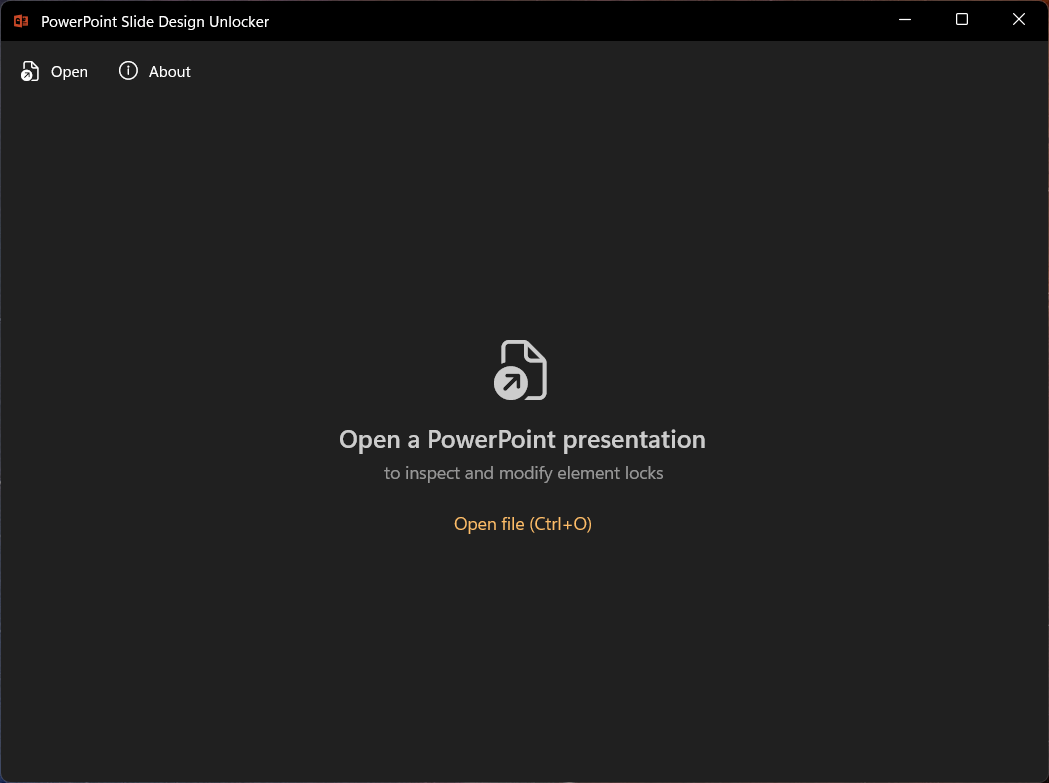
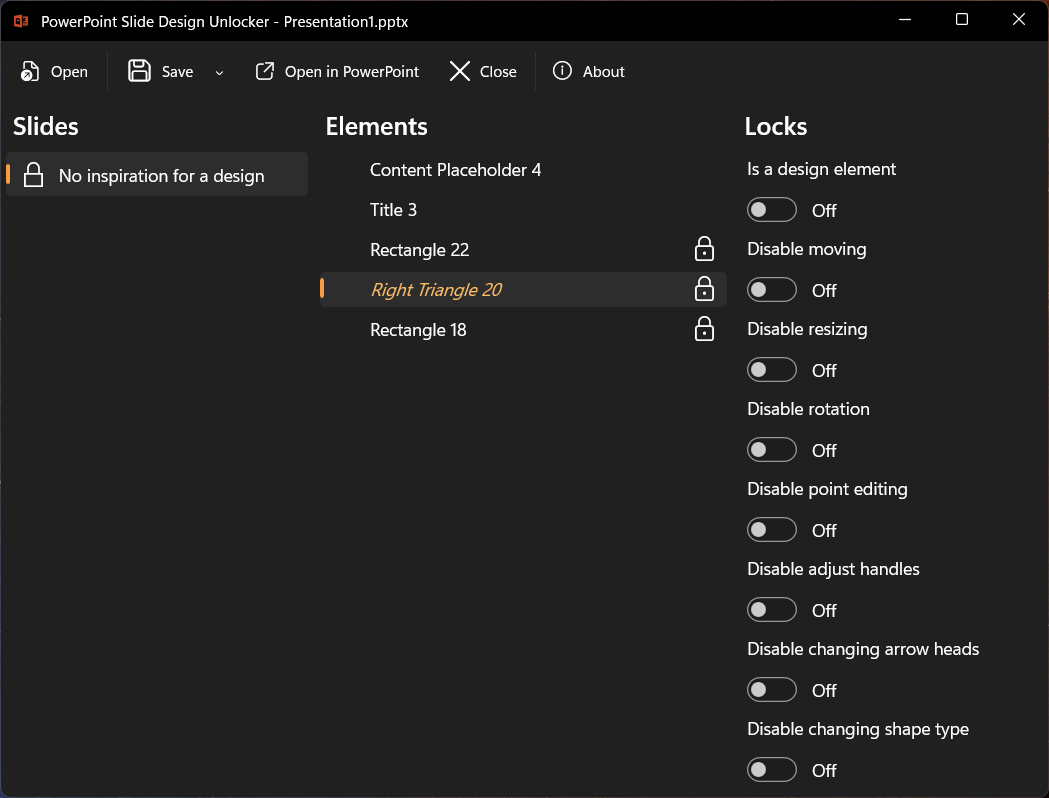
Slide Design Unlocker opens a .pptx file and shows three panels:
- Slides on the left, with a padlock icon on any slide that contains locked shapes.
- Elements in the middle, listing every shape on the selected slide, again with a padlock icon for those that carry active locks.
- Locks on the right, with toggle switches for the ten locks and the design flag for the selected shape. These map directly to the XML attributes listed above.
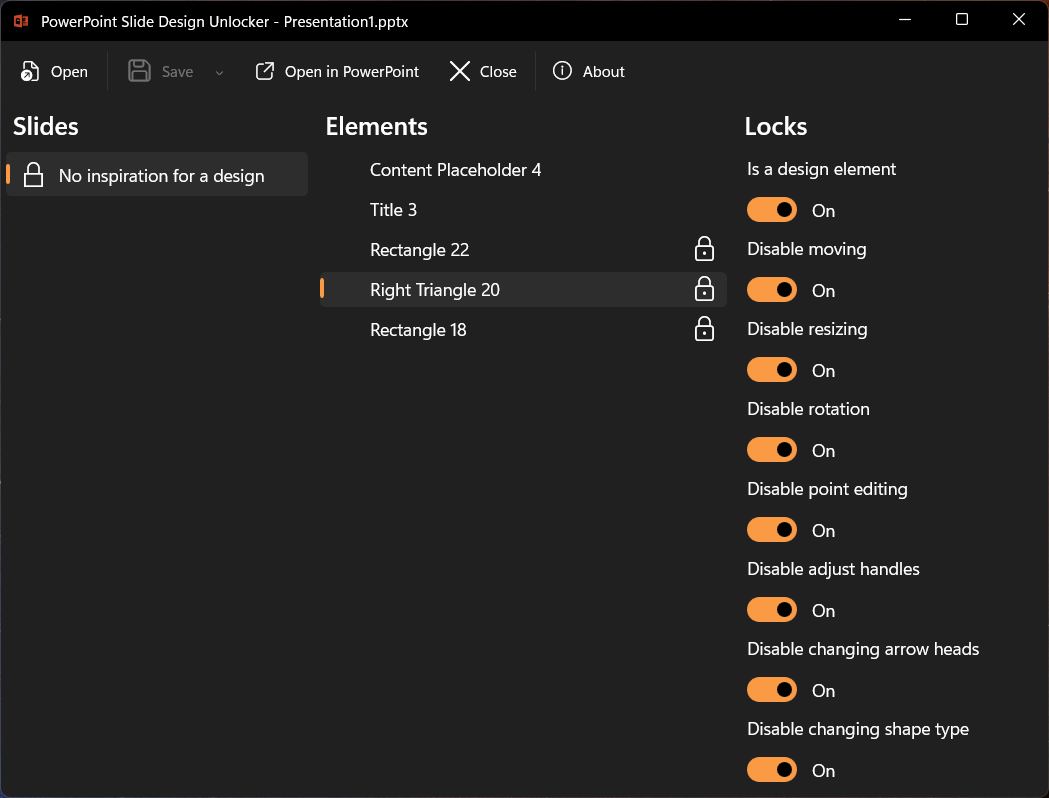
Turn off the toggles for the shape you want to edit.
Save and reopen the file in PowerPoint. The shape is now a normal, editable element.
Note
The app only modifies the XML lock flags. Styles, animations, and theme settings stay untouched.
Bonus: lock shapes the other way
Because the toggles are symmetric, the app works in both directions.
If you want to protect a shape from accidental changes, like a carefully positioned logo,
a decorative element you spent time aligning, or a chart you do not want nudged,
you can enable the relevant locks yourself. Designer is not involved:
the same a:spLocks attributes work on any shape in any presentation.
Get it from the Microsoft Store
I actually started building this application over four years ago, when PowerPoint did not have the lock/unlock toggle in the UI at all. I just never got around to finishing and publishing it.
Even now, the built-in option is limited to all-or-nothing. That is where the ten individual lock settings make the difference, and why I still use my app regularly.
Slide Design Unlocker is free, requires no account or sign-in, and transmits no data or telemetry. It is available now in the Microsoft Store, and the source code is also available on GitHub.
If you run into something unexpected, have a suggestion, or just want to share what you unlocked, feel free to reach out to me.